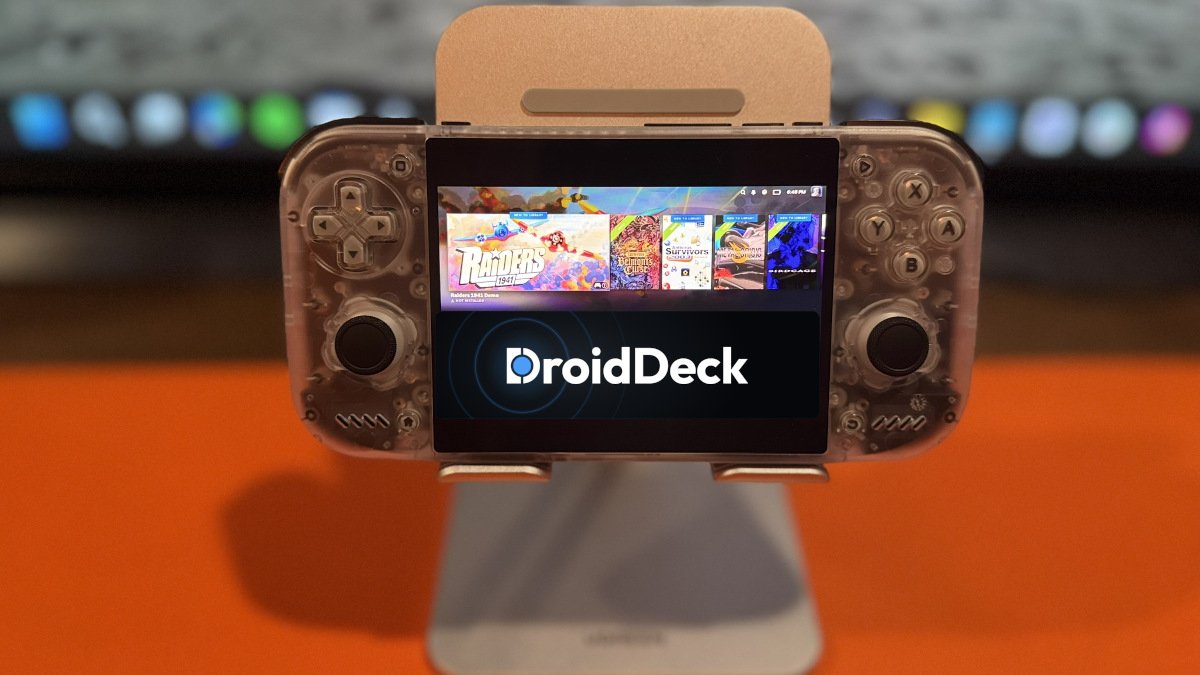
Have a small army of Android devices sitting around that you really wish you could play your Steam games on? Sure, there is GameHub and GameNative, but us gamers, we want the latest and greatest, not yesterday’s apps. What have you done for me lately, internet?! This is a me-first world, and I need my daily fix of something new to play something old.
For those eager to try the latest and greatest, I present to you DroidDeck!
This open-source project aims to bring a Steam Deck-like experience to compatible Android handhelds. What separates DroidDeck from GameNative and other apps is that it runs Valve’s native ARM64 Steam client in Big Picture mode, with Windows games running through Valve’s ARM64 Proton and FEX.
Put all that fancy talk aside, and what I’m really trying to say is this: DroidDeck brings the familiar Steam Big Picture interface to Android handhelds and uses compatibility tools to run Windows PC games.
What Devices Support DroidDeck?
| Requirement | Compatibility |
|---|---|
| Android | Android 9 or newer |
| Supported GPUs | Adreno 730 or newer, including Adreno 8xx GPUs |
| Unsupported GPUs | Mali, Xclipse, PowerVR, and Adreno 710 |
| Base Runtime | Approximately 3 GB of free storage |
| Optional Components | Approximately 1.1 GB for the optional desktop and emulator components |
| Game Storage | Additional storage is required for installed Steam games. |
How to Install DroidDeck
DroidDeck is installed as an Android APK, so you aren’t replacing Android, flashing custom firmware, or rooting your handheld.
| Step 1: Download DroidDeck | |
|---|---|
| Download | Download the latest DroidDeck APK from the project’s official GitHub Releases page. |
| Important | The developers warn that DroidDeck does not currently have a standalone official website. APKs should be downloaded from the project’s GitHub repository. Don’t fall for scams you noobs! |
| Step 2: Install the APK | |
| Install | Locate your downloaded APK and follow the prompts to install. |
| Unknown Apps | If you get that annoying Android is blocking the installation message, click allow and move on with your life. |
| Step 3: Install the Linux Runtime | |
| Runtime | Launch DroidDeck and install its Linux runtime. The runtime requires approximately 3 GB of storage. |
| Optional | For now, don’t install the optional Desktop & Apps package. It’s not needed to begin using Steam. Once you have DroidDeck up and running, decide whether you want to add it later. This will give you access to Linux desktop, applications, and emulator functionality. |
| Step 4: Disable Android’s Child Process Restriction | |
| Developer Option | Before Steam can launch, DroidDeck requires Android’s child process restriction to be disabled. Some devices expose a Restrict child processes option in Developer Options. If it’s available on your device, make sure it is disabled. |
| Retroid Pocket Nova |
On my Retroid Pocket Nova, I handled this through ADB from a Windows PC.
With USB Debugging enabled and the Nova connected to the PC,
first verify that ADB can see the device:
adb devices
|
| ADB Command |
Once your device appears as device, run:
adb shell settings put global settings_enable_monitor_phantom_procs false
|
| Verify |
You can verify the change with:
adb shell settings get global settings_enable_monitor_phantom_procs
If everything worked correctly, the command should return false.
Not sure if you did it correctly?
Click here to see an example
of the complete ADB process on my Retroid Pocket Nova.
|
| Android 12 / 13 | Some Android 12 and Android 13 devices might not expose the Developer Option. DroidDeck may instead present a Fix it for me button during the first Steam launch to help automate the required setup. |
| Step 5: Launch Steam | |
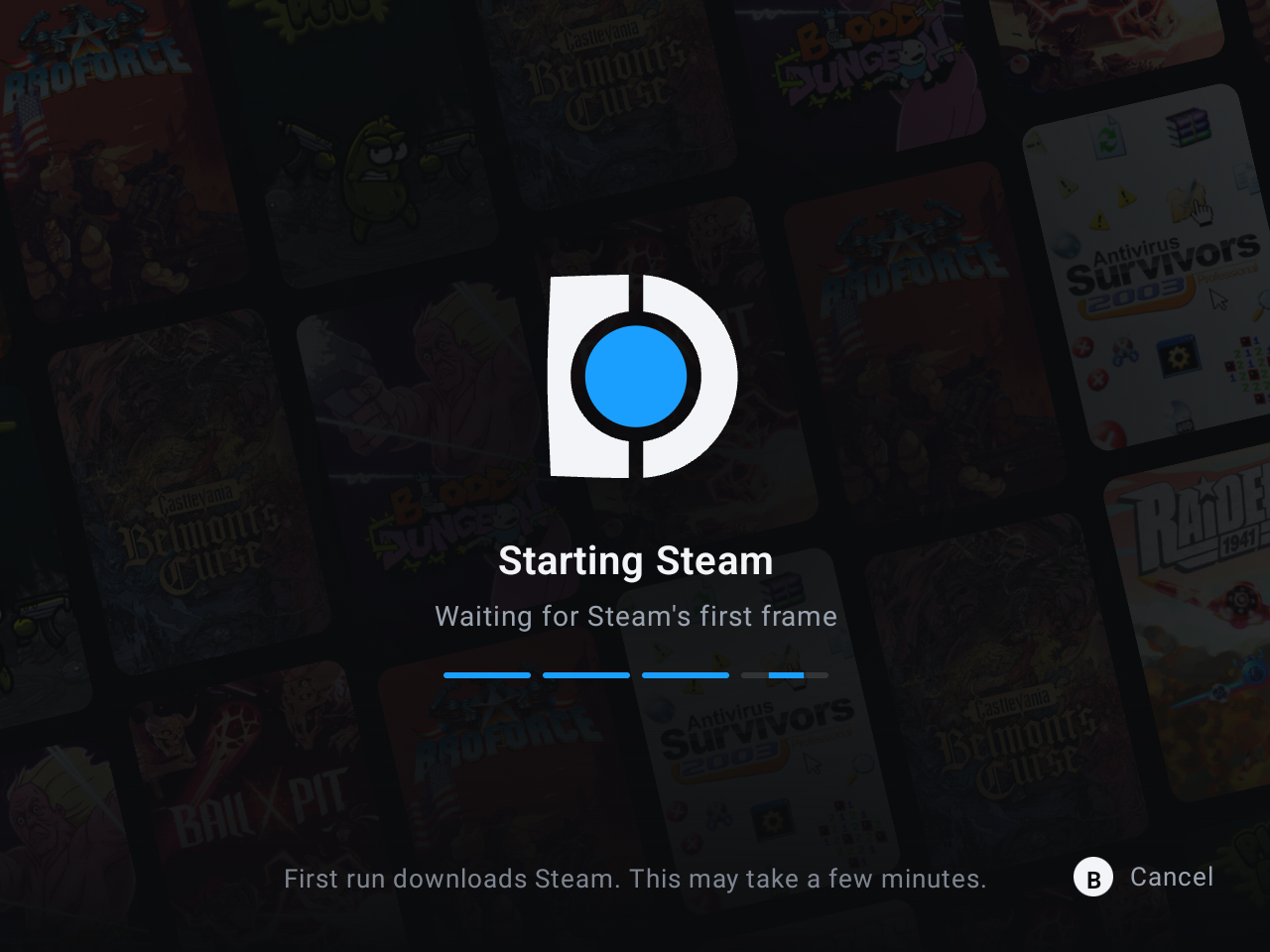
| Launch | Press Play inside DroidDeck. DroidDeck will download Valve’s ARM64 Steam client when Steam is launched for the first time. |
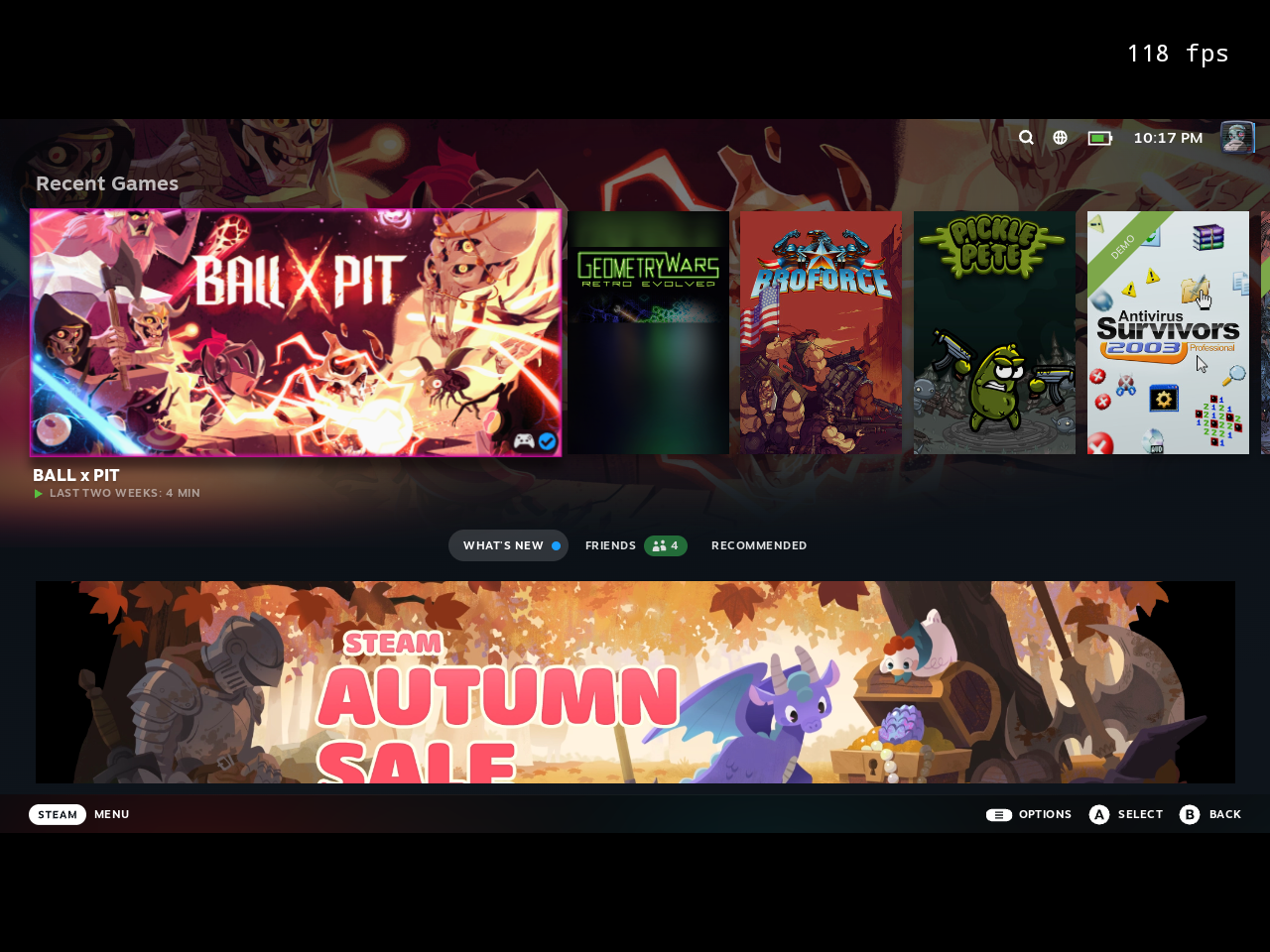
| Sign In | Once installation is complete, sign in to your Steam account. Steam will then run using Big Picture mode. |
| Step 6: Install a Game | |
| Steam Library | Open your Steam library, choose a game, and install it through Steam. Don’t be a knucklehead and choose the latest and greatest! Be reasonable and select something lightweight or middle of the road to start. |
| Windows Games | Game compatibility and performance will vary. |
| Your Steam credentials aren’t entered into DroidDeck itself. When you launch Steam through DroidDeck, you’re signing into Valve’s Steam client just as you would on another device. Once signed in, DroidDeck can retain that Steam session for future launches, including offline use. |
There’s More Than Steam
We’re greedy beings, and we can’t just be satiated by playing Steam games on our fancy Android handhelds.
For those thirsty enough, there’s an optional desktop environment that can add Linux applications and emulators. Recent DroidDeck updates have also added features such as Steam Input, performance monitoring, GPU driver management, Decky Loader support, per-game controls, and support for dual-screen handhelds.
Want to use DroidDeck as your Android Home application? Not a problem! This effectively turns DroidDeck into your primary handheld launcher for both Steam and Android games.
A Few Things to Keep in Mind
DroidDeck is a relatively new project, and its developers note that hardware validation remains limited. Just because your favorite handheld meets the stated hardware requirements doesn’t guarantee that everything will work. So yeah, patience, trial and error, and a sprinkle of good luck will go a long way.
Game compatibility will also vary. Have you been watching and listening to these Steam Frame reviews? I have, so let me tell you: running Steam doesn’t automatically mean your entire Steam library is going to run properly. What doesn’t work today may work tomorrow, or next week. The key thing is to be here for this moment and see where it takes us.
For now, if you have a powerful Snapdragon-based Android handheld like one of the devices below, try it out and have fun!
- AYN Odin 2 Portal — Snapdragon 8 Gen 2 / Adreno 740
- AYN Odin 2 — Snapdragon 8 Gen 2 / Adreno 740
- AYANEO Pocket S — Snapdragon G3x Gen 2 / Adreno 740
- AYN Odin 3 — Qualcomm Dragonwing Q8 / Adreno 830
- Retroid Pocket 6 — Snapdragon 8 Gen 2 / Adreno 740
- Retroid Pocket Nova — QCS8550 / Adreno 740
Testing & Final Impressions
I tested six games on the Retroid Pocket Nova using DroidDeck, with most of my time spent comparing them to games I’d previously played on GameNative. I didn’t test anything particularly demanding, but across the games I did test, my impression was that they generally ran better on DroidDeck than on GameNative.
This surprised me. I’ve listened to others in the space whom I highly respect, and their experience has been that, since we’re still in the early days, GameNative performs better. In my small test sample, I felt the opposite. The takeaway here should be to try different games for yourself. These are just my impressions.
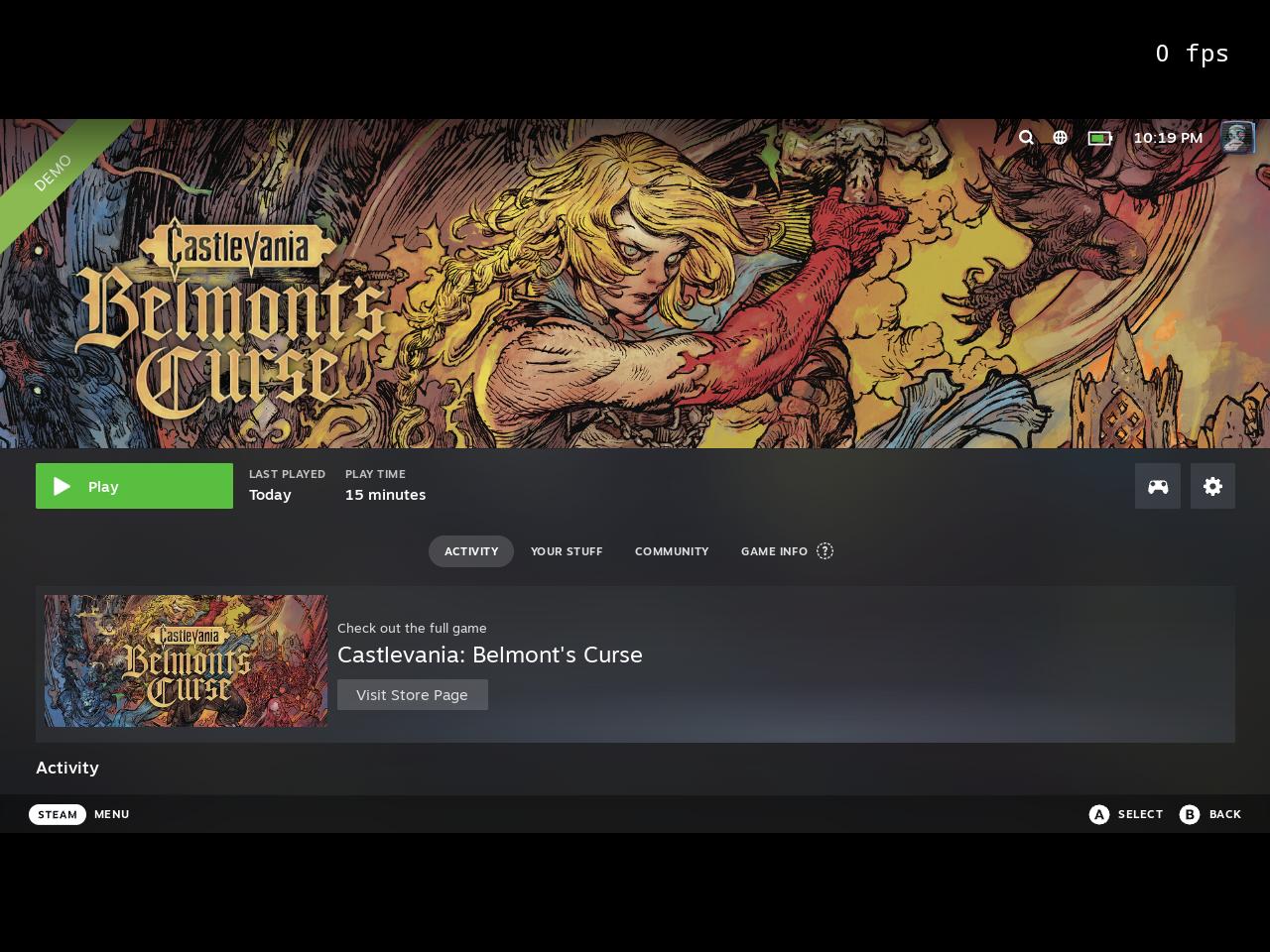
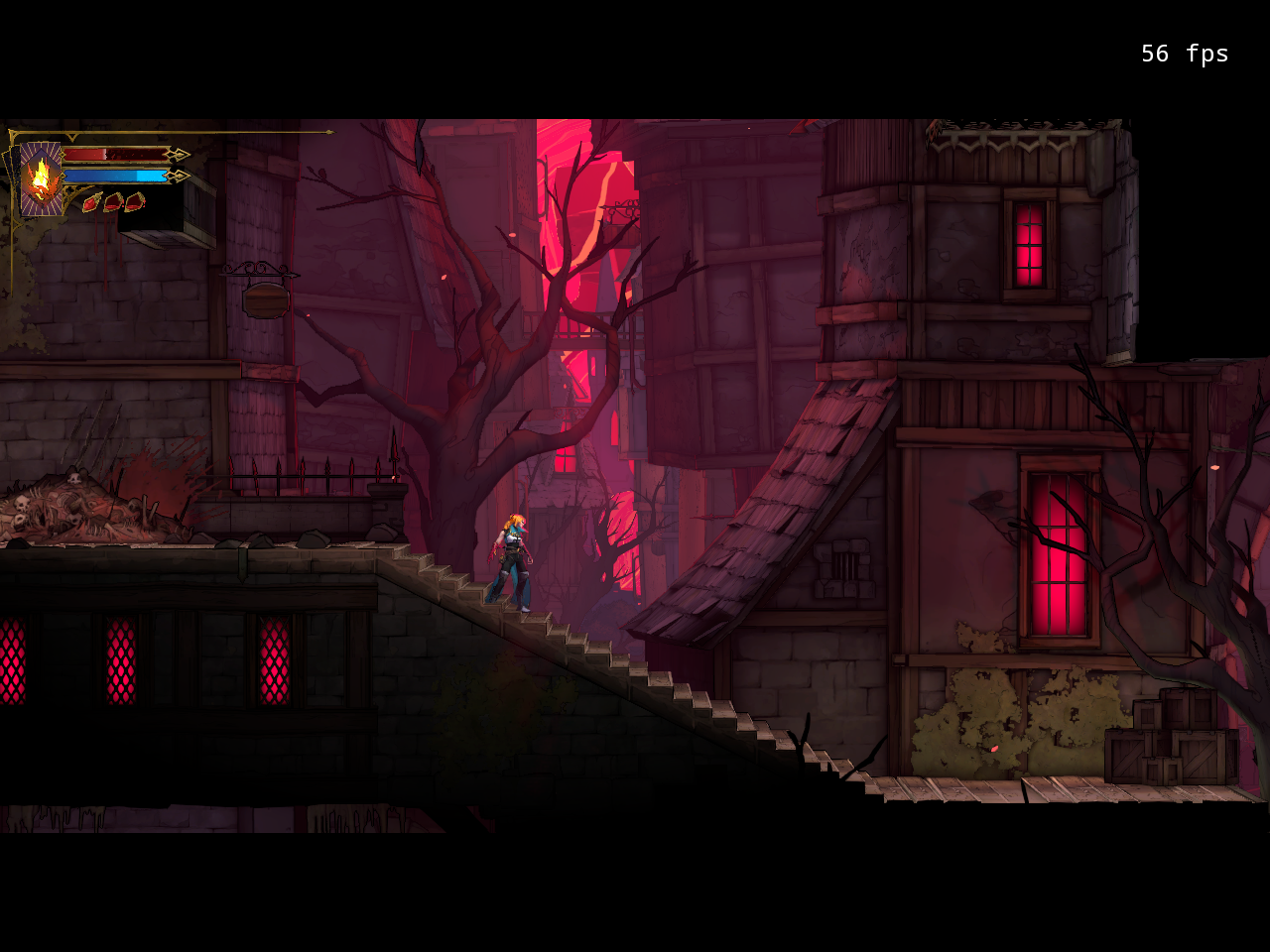
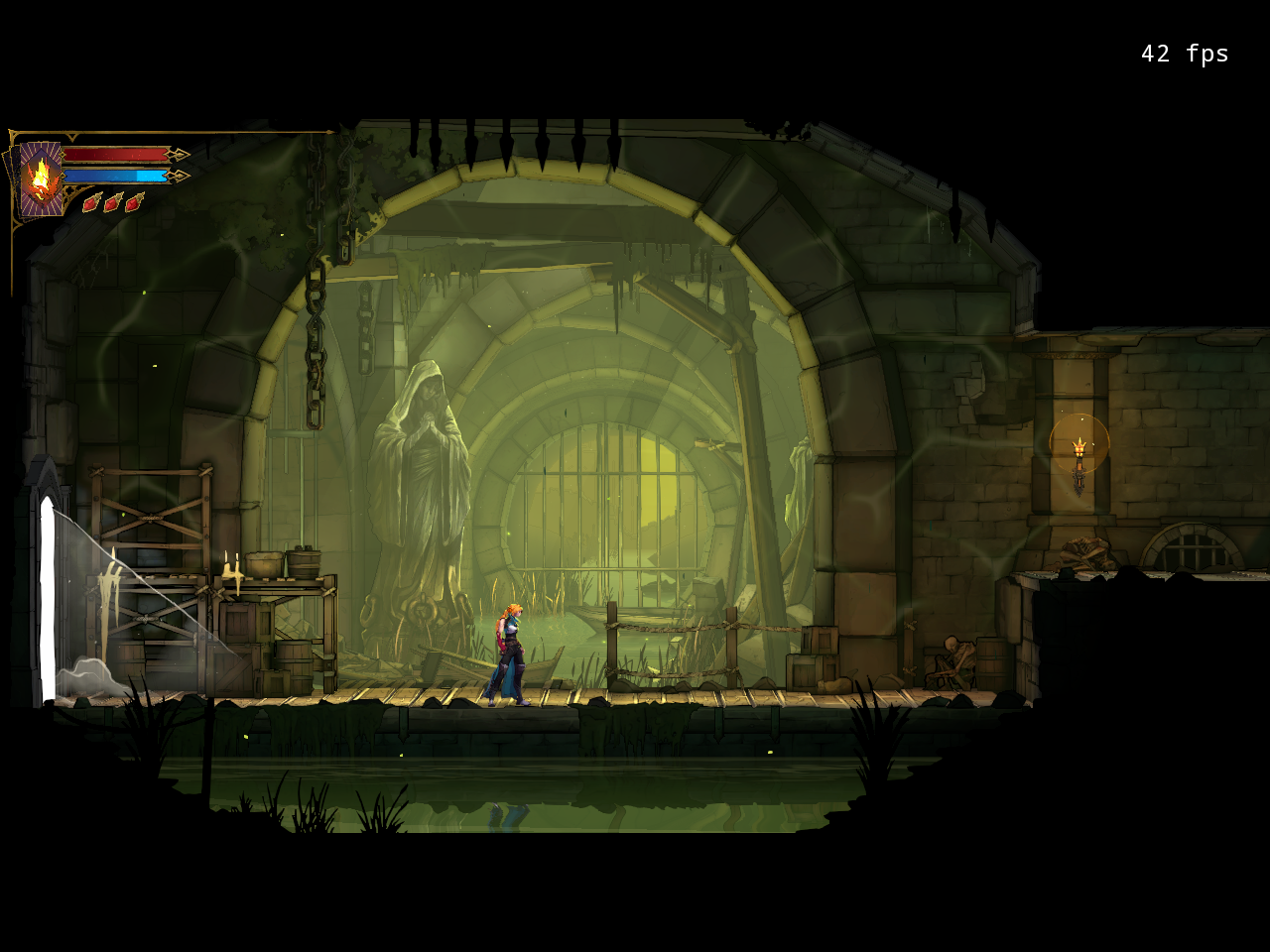
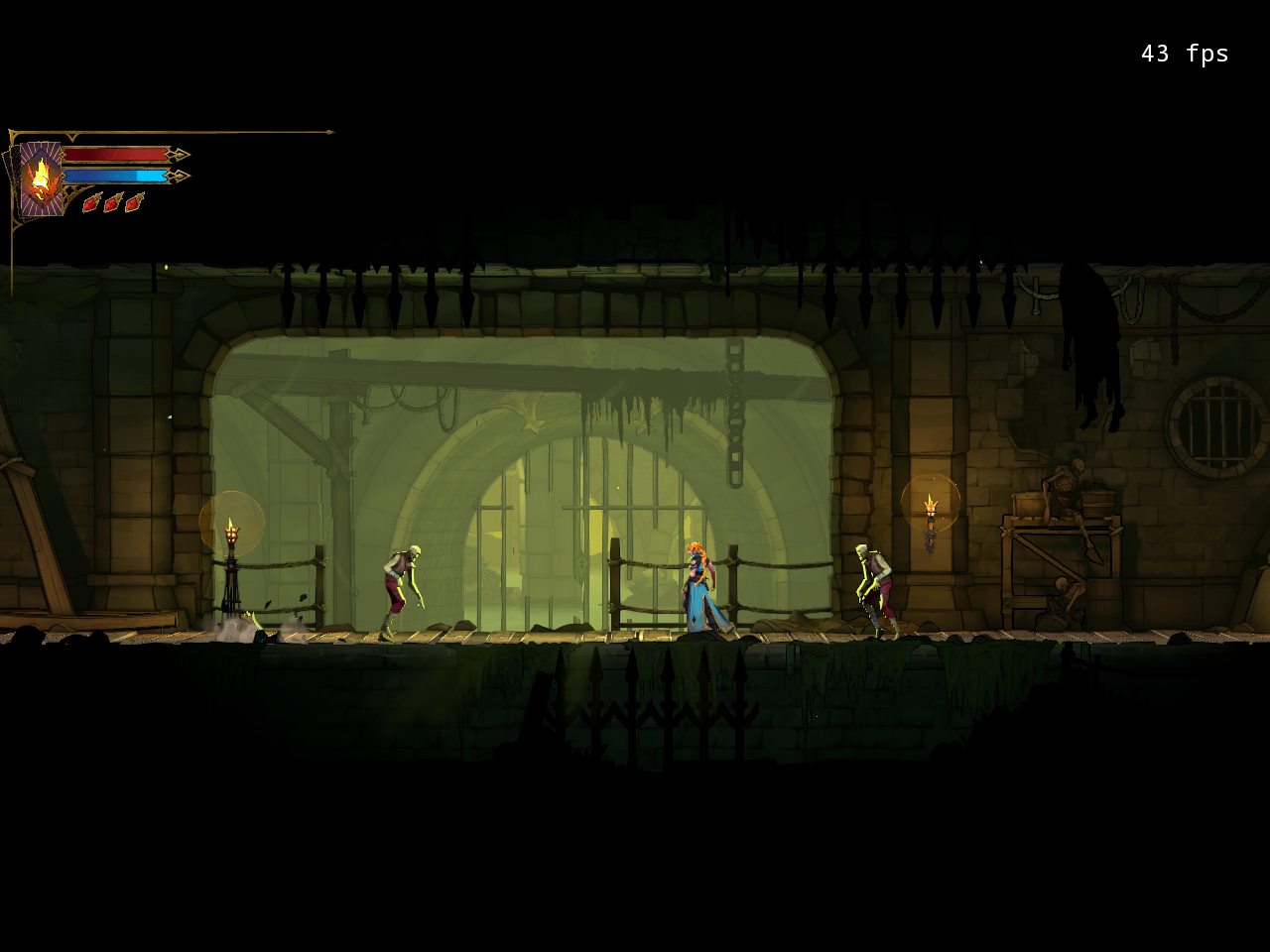
Castlevania: Belmont’s Curse Demo was one of the clearest examples. On GameNative, I was seeing performance in the low-20 FPS range with noticeable audio issues. I tested many community configurations, but to me, the game remained unplayable on GameNative. On DroidDeck, it generally ran between 30 and 40 FPS. That’s still not perfect performance, but it made the game considerably more playable, with no noticeable issues that took away from the experience.
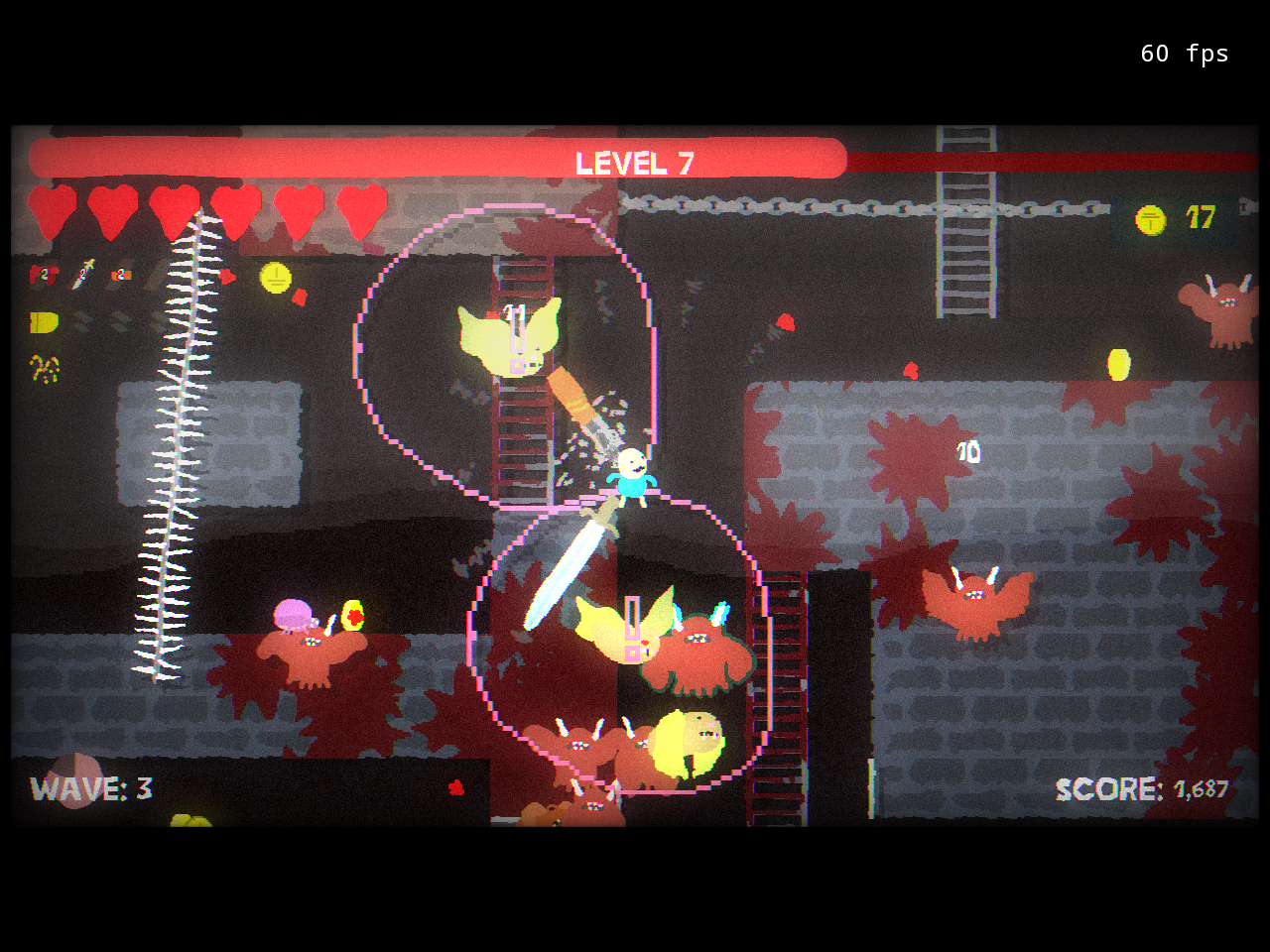
Blood Dungeon showed another substantial improvement, running around 60 FPS through DroidDeck compared to the 40 FPS range I was seeing with GameNative. Broforce and Pickle Pete also provided a better overall experience through DroidDeck. I also tested BALL x PIT, a safe bet, I know, but even that surprised me at 110–120 FPS.
It wasn’t all positive news, though. During my initial testing, four of the six games I installed crashed back to SteamOS on their first launch. At the time, completely exiting and relaunching DroidDeck allowed the games to launch normally. However, I later discovered that I had run my Nova dangerously low on internal storage, so I can’t say with confidence that DroidDeck itself was responsible for those initial crashes. More on that little adventure below.
Geometry Retro Evolved was the bigger problem, which completely surprised me considering it’s under 65MB. I thought this would be the perfect game to test from a microSD card. I couldn’t have been more wrong. Launching it completely locked up the Nova and required holding the power button to force a reboot. I initially thought the microSD card might be responsible, so I uninstalled the game and reinstalled it to internal storage. The exact same thing happened. Other games continued to work normally afterward, including BALL x PIT at that oh so sweet 110–120 FPS, so this appears to be a compatibility issue with that particular game rather than a storage problem.
There’s also no getting around the fact that SteamOS wasn’t designed for a 4.5-inch 4:3 display. Some of the interface text on the Nova is tiny. If you’ve listened to past episodes of On Second Thought with Mike and Matt, you know I’ve recently acquired a magnifying glass to help me with text on these smaller handhelds. My trusty reading device helped out big time on certain menus. Of course, once I’m in a game I know like the back of my hand, it’s much less of an issue, but navigating SteamOS and digging through settings can be challenging.
Despite those rough edges, this is incredibly cool to see happening in the ARM space, and happening so rapidly. There’s still a novelty to doing something like this on a handheld the size of the Nova that I absolutely love. I really can’t get enough of the Pocket Nova! Have you read my review?
And yes, putting a 16:9-focused SteamOS interface on a tiny 4:3 handheld is kind of a ridiculous test, much like this whole idea to do this website, but hey, you do you. I could have done this on the Retroid Pocket 6 or Odin 3 and probably had a much more sensible experience. But why play it safe when you can be absurd? Remember, I’m doing this for my enjoyment.
DroidDeck isn’t perfect, and my testing so far has been relatively limited, but I’m coming away impressed and, more importantly, excited to see what this app will be like in the weeks and months ahead. GameNative is so much better now than it was just a few months ago, and I expect things to continue moving quickly. Between the Steam Deck-like experience and the performance improvements I’ve seen so far, I’m going to keep testing other games. The fact that we’re even having this conversation about running PC games this way on a little ARM handheld is pretty damn cool. Now, will it run Crysis!?!
A few screenshots from my time testing DroidDeck on the Retroid Pocket Nova. Click any image to view the original 1280 × 960 capture.
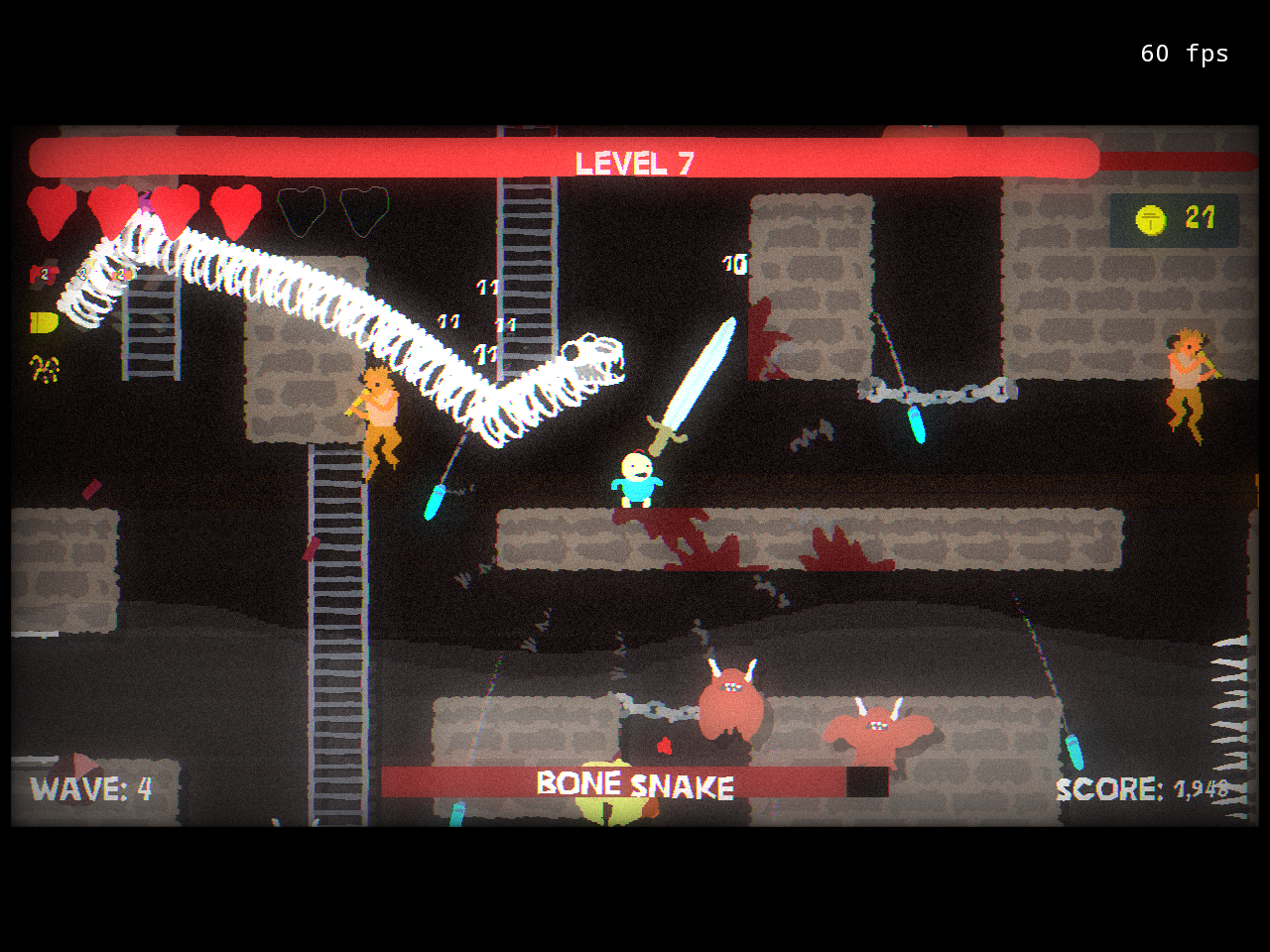
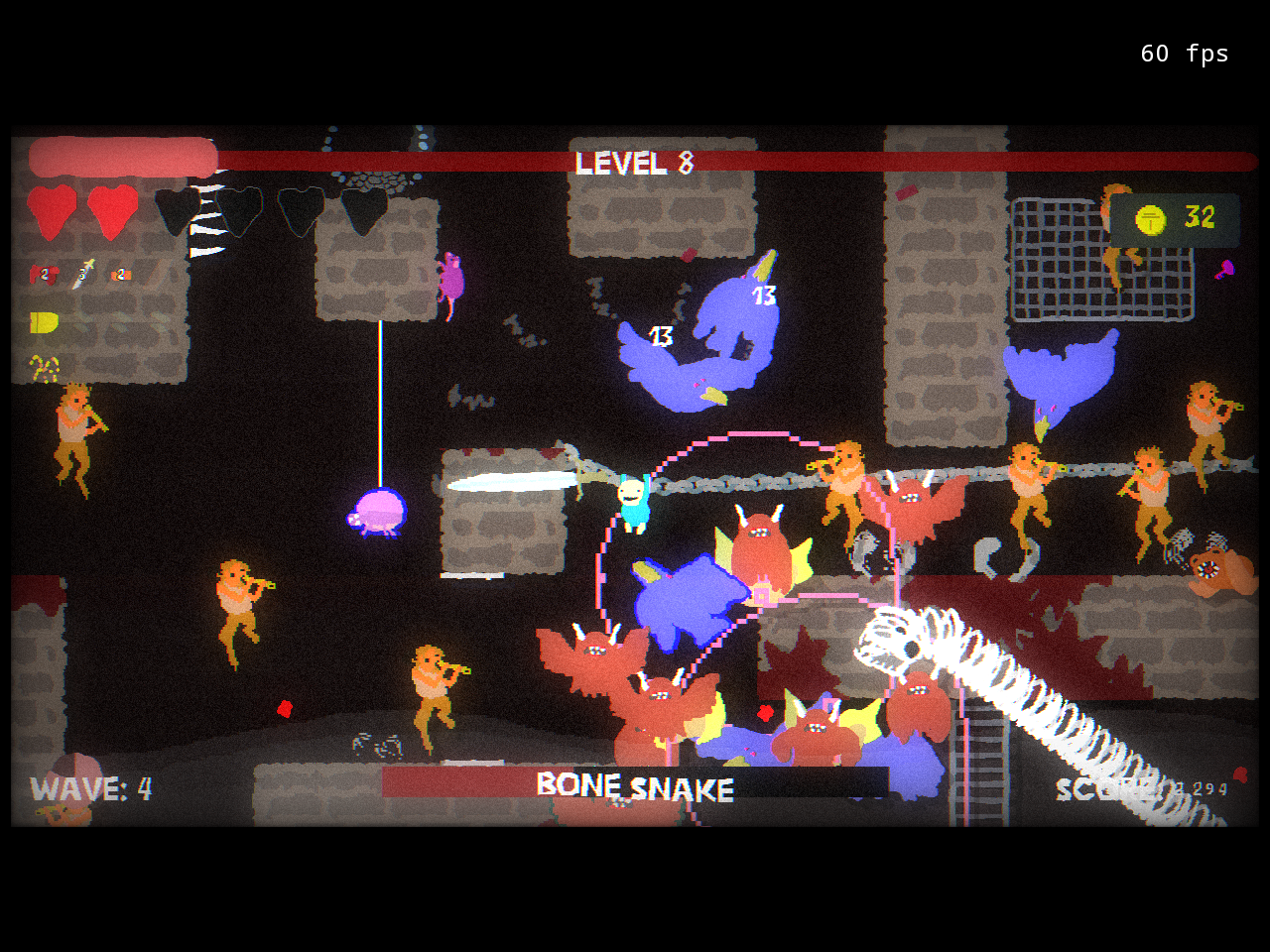
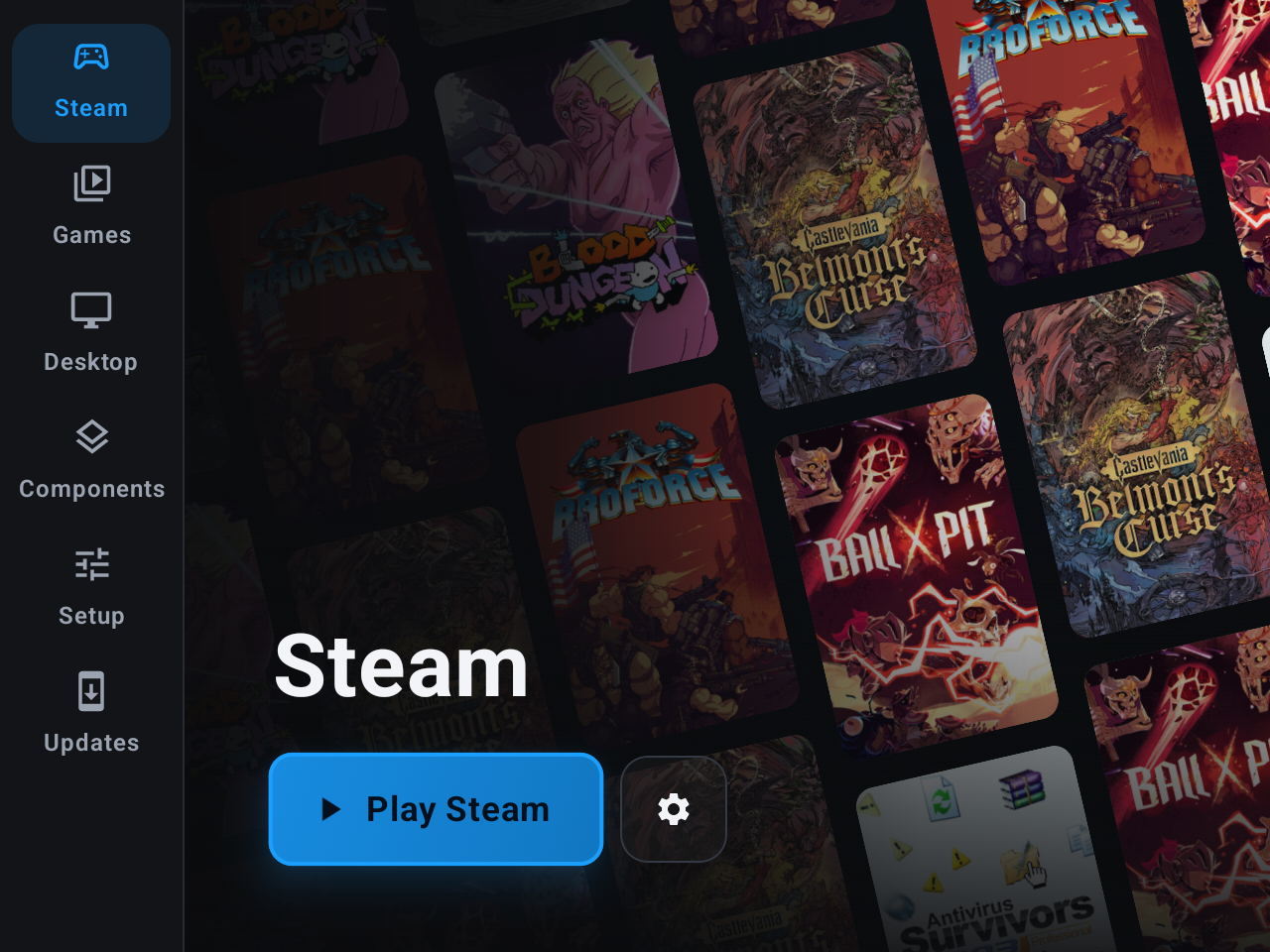
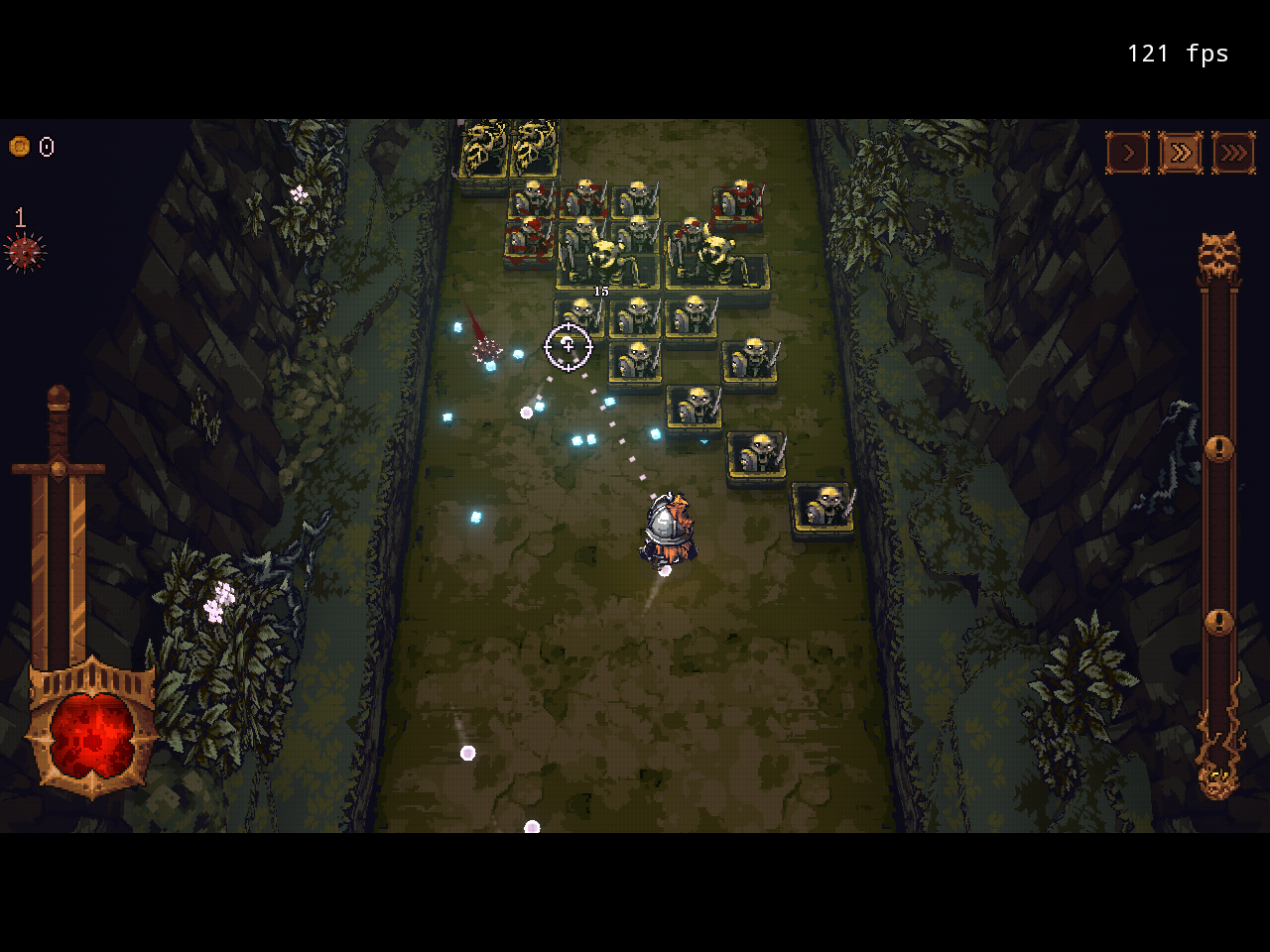
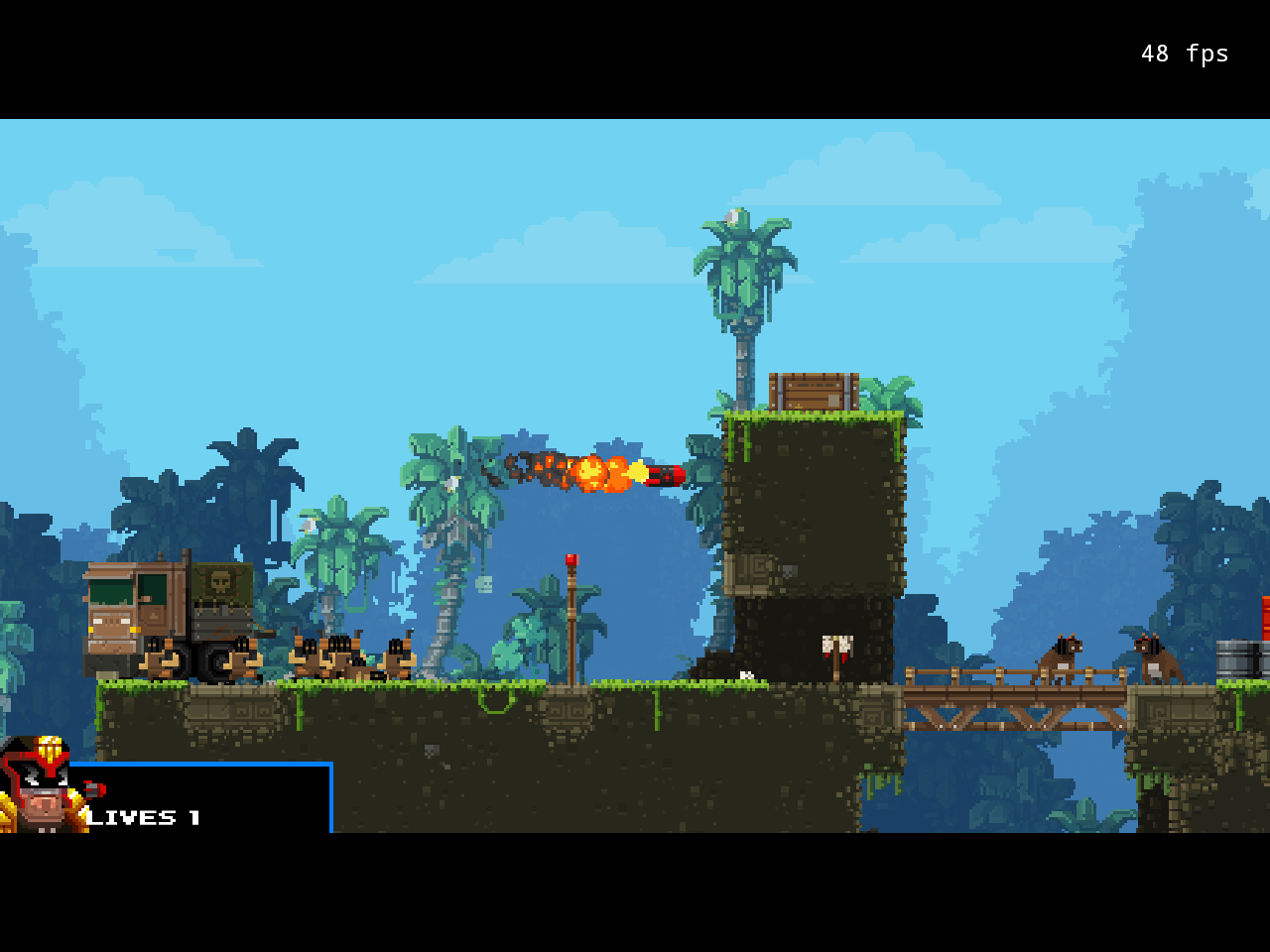
I may have flown a little too close to the sun while testing all of this. Between GameNative, DroidDeck, emulators, and my apparent need to install every game I see, I managed to get my Nova down to less than 500MB of free internal storage. I didn’t heed my own advice from earlier. Don’t make the same mistakes!.
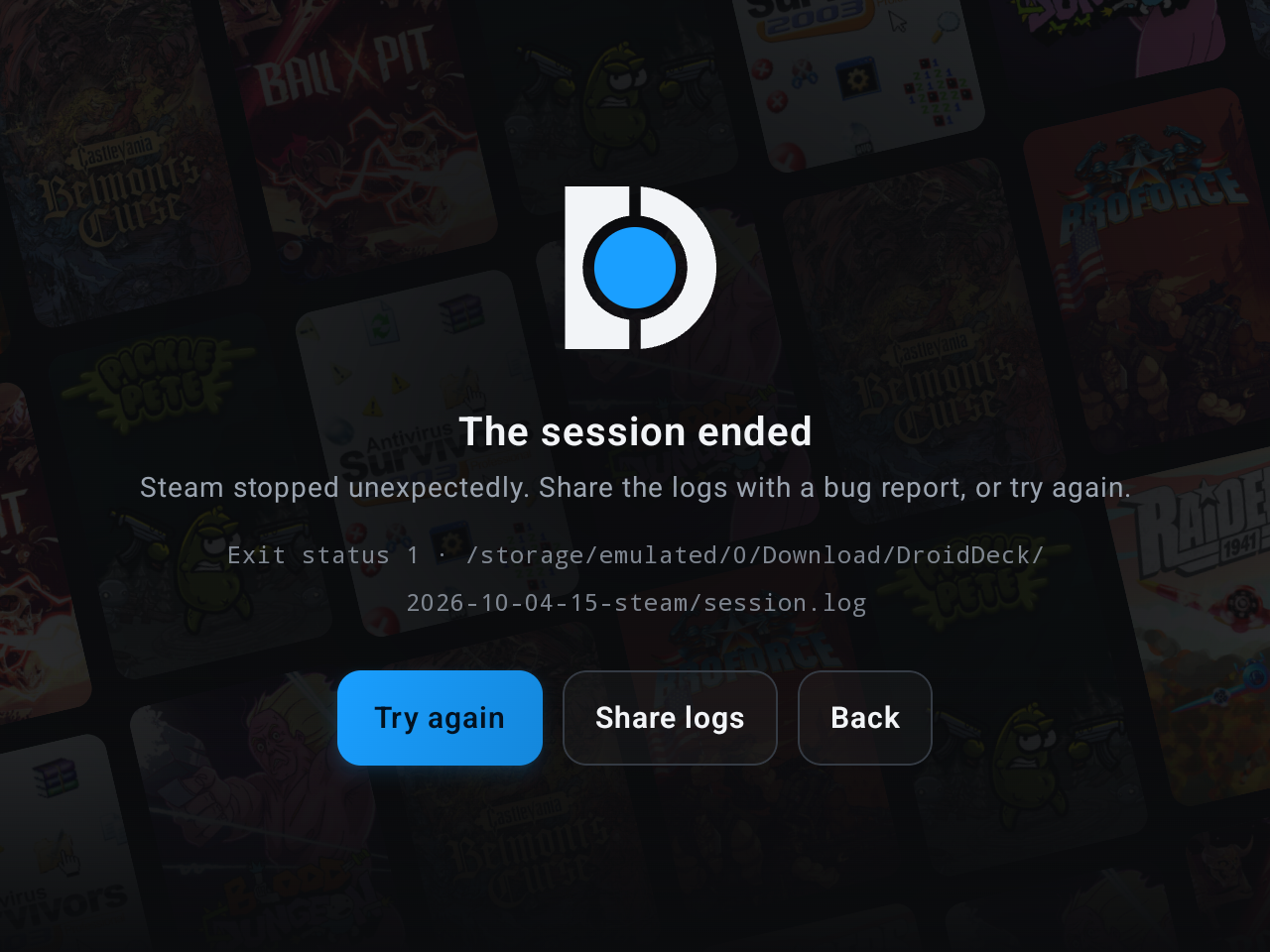
Once storage got that low, DroidDeck became unstable and eventually started launching to a black screen with a 0 FPS counter. Android’s own logs showed the system repeatedly trying and failing to free additional space. After coming to my senses and cleaning things up, I was roughly back to 20GB free. DroidDeck and the games I tested were working normally again.
| Storage Test | ||
|---|---|---|
| My Nova | Free Storage | What Happened |
| Before Cleanup | ~444MB | DroidDeck became unstable; black screen / 0 FPS |
| After Cleanup | ~20GB | DroidDeck launched and games worked normally |
| After Another Game Test | ~20GB | No meaningful increase in storage usage |
I also checked storage before and after another run of Belmont’s Curse. Free space changed by only about 232KB, with no change in Android’s reported app data or cache totals. I was relieved that playing the game wasn’t suddenly eating through storage. Just when I thought I was done with this article, I mucked things up with my own greed.
I can’t say low storage was definitively the cause of every issue I experienced, but freeing up additional internal memory certainly helped. Moral of the story: leave some room for fun activities, or else enjoy that black screen with 0 FPS counter.
| Source | Used For |
|---|---|
| DroidDeck GitHub | Project information, hardware compatibility, system requirements, features, and installation instructions. |
| DroidDeck Releases | Current releases, downloads, and release notes. |