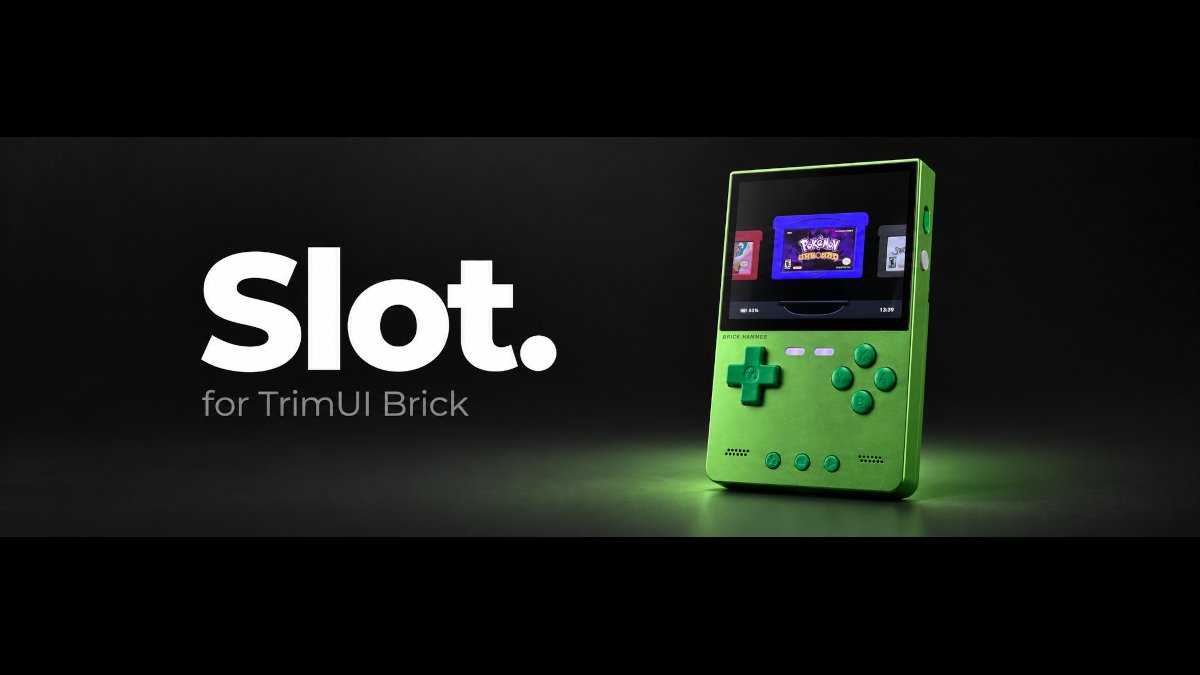
Version 0.50 of Slot-Brick is out, introducing PlayStation support, expanding hardware compatibility, and adding Slot OS, an experimental custom firmware option that allows the handheld to boot directly into the Slot-Brick frontend.
I’ve covered Slot before, but this is my first time writing about Slot-Brick. If you’re wondering what the difference is between the two, you’re probably not alone.
Slot is Brandon T. Kowalski’s original frontend, developed for Anbernic’s RG SP handhelds. Slot-Brick is an unofficial adaptation for TrimUI’s Brick family of handhelds. While both share the same cartridge-based interface, Slot-Brick has taken things further with additional system support and features tailored to TrimUI’s hardware.
Now, if you’re keeping track at home, kids, Brandon describes the original Slot as “just a glorified wrapper around mGBA and gpSP.” So, if Slot-Brick is a port of Slot, does that mean we’re now double-wrapped? Just like your dad encouraged you to do.
PlayStation support represents another milestone. Rather than attempting to fit disc-based games into the existing cartridge interface, Slot-Brick introduces a dedicated shelf where PlayStation discs spin into a virtual disc slot. The new functionality uses PCSX ReARMed and supports games with multiple discs. It’s an interesting addition that reminds me a little of Socket, another frontend that embraces the nostalgia of physical game collections.
Perhaps the biggest development is Slot OS, an experimental custom firmware option that allows the Brick to boot directly into the Slot-Brick frontend without first loading the stock firmware interface. According to the developer, startup is considerably faster than the traditional installation method. Slot OS runs from a microSD card and does not replace the handheld’s internal firmware. For now, the developer recommends the traditional installation method, as Slot OS remains experimental.
Version 0.50 also introduces Brick Pro support, alongside the existing Brick and Brick Hammer compatibility. The developer has adapted the controls and lighting for the additional hardware, although the dedicated Brick Pro Slot OS image remains experimental and has not yet been tested on physical hardware.
Beyond these major additions, Slot-Brick continues to refine its interface, game library management, and customization options. What began as a Game Boy-focused frontend now supports six gaming platforms and offers its own experimental operating system.
Nostalgia is great and all. I’m a sucker for the old days myself. Simpler times, when physical media ruled, certainly had their advantages and disadvantages. But are we starting to oversaturate the nostalgia market with all these options? Slot, Slot-Brick, Socket. What’s next? Socket-Brick with Kung Fu Grip?
| Emulation & Game Support | |
|---|---|
| PlayStation Emulation | Version 0.50 introduces PlayStation support through PCSX ReARMed, including multidisc games. |
| NES & SNES | Dedicated NES and SNES libraries powered by FCEUmm and Snes9x. |
| Compressed Games | Expanded support for compressed game files across multiple systems. |
| Library & Customization | |
| Favorites & Sorting | Mark favorite games and organize collections using several sorting options. |
| Playtime Tracking | View playtime information for individual games. |
| Cartridge Artwork | Download and customize cartridge labels for your game collections. |
| Custom Fonts | Choose from included fonts or install your own. |
| Display Overlays | New display overlays for supported systems, with options for custom artwork. |
| Gameplay & RetroAchievements | |
| Rumble Support | Vibration support for compatible games. |
| RetroAchievements | Earn achievements directly through Slot. Softcore mode is supported. |
| Automatic Saves | Optional automatic save intervals help protect game progress. |
| System & Interface | |
| Slot OS | Experimental custom firmware that boots directly into Slot with faster startup times. |
| Brick Pro Support | Expanded hardware support, including analog stick mapping and LED controls. |
| Battery Protection | Low-battery LED warnings and configurable automatic shutdown. |
| Reorganized HOME Menu | A cleaner settings menu with improved organization. |
| Wi-Fi Updates | Install updates directly through Slot without losing games, saves, or settings. |
| Clock & Connectivity | Automatic clock synchronization and additional connectivity improvements. |
If you’re like me and regularly experiment with different custom firmware and frontends, there’s some good news. Slot-Brick can be installed on a separate microSD card, so you don’t necessarily have to abandon your existing setup. For example, I currently use SpruceOS on my TrimUI Brick, but I can prepare another card for Slot-Brick and switch between the two. Just remember to shut down the handheld before swapping cards, and back up anything important before formatting.
| Stock Firmware Installation (Recommended) | |
|---|---|
| 1. Download | Download slot-brick-v0.50-sd-card.zip from the official GitHub releases page and extract it. |
| 2. Prepare microSD | Back up any existing files, then format the card as FAT32 with the volume label SLOT. Formatting erases the card. |
| 3. Copy Files | Copy the contents of the extracted SD-CARD folder to the root of the microSD card. Include hidden files and folders, especially .slot-boot. |
| 4. Add Games | Copy games, saves, save states, and any required BIOS files into their corresponding folders inside Slot/. |
| 5. Launch | Insert the card and power on the handheld. Slot should launch automatically. If the stock firmware menu appears, open Apps > Slot. |
| Slot OS Installation (Experimental) | |
| 1. Download | Back up your existing microSD card, then download slot-os-v0.50-sd-card.img.xz from GitHub. Brick Pro users must download the separate slot-os-brickpro-v0.50-sd-card.img.xz image. |
| 2. Flash microSD | Use Raspberry Pi Imager or balenaEtcher to write the compressed image directly to the card. This erases the entire card. |
| 3. First Boot | Insert the card and power on the handheld. Slot OS automatically expands its storage partition during the first startup. Allow this process to finish before transferring large game collections. |
| 4. Restore Games | After the first boot, copy your Games, Saves, States, BIOS, Labels, and Config folders into Slot/. Reconnect to Wi-Fi if needed. |
| Important Notes | |
| Original Firmware | Slot OS does not modify the handheld’s internal firmware. Remove the Slot OS card to return to the original startup environment. |
| Windows Format Warning | Windows may ask to format unfamiliar partitions after flashing Slot OS. Always select Cancel to avoid damaging the installation. |
| Brick Pro | The dedicated Brick Pro Slot OS image remains experimental and has not been tested on physical Brick Pro hardware. |
| Slot-Brick GitHub | Official repository, project documentation, supported devices, features, and installation instructions. |
| Slot-Brick 0.50 Release | Latest release notes covering PlayStation support, Slot OS, Brick Pro compatibility, and additional improvements. |
| Slot-Brick Release History | Previous updates, including versions 0.42, 0.43, and 0.44. |
| Original Slot GitHub | Brandon T. Kowalski’s original Slot frontend, project documentation, and development history. |
| Slot-Brick Promotional Artwork | Official Slot-Brick promotional banner. Image credit: LordNordyx / Slot-Brick. |